Notifications
8 minutes, 23 seconds
-16 Views 0 Comments 0 Likes 0 Reviews
For designers and makers, the ability to transform a two-dimensional image into a tangible three-dimensional object is nothing short of alchemy. Whether you're a graphic designer wanting to breathe physical life into your logos, a hobbyist creating custom gifts, or an engineer prototyping a part from a sketch, understanding the nuances of image-to-STL conversion is an essential modern skill. This guide moves beyond the basic "how-to" and delves into the practical wisdom, common pitfalls, and professional tips that separate frustrating failures from stunning successes. By internalizing these insights, you'll not only save time and material but also unlock a higher level of creative potential in your making journey.
The golden rule of image-to-STL conversion is simple: garbage in, garbage out. The resolution of your source image directly dictates the quality of your final 3D model. Low-resolution images with visible pixelation will produce STL files with jagged, stepped edges that look unprofessional and may even fail to print correctly. For best results, start with the highest resolution image you can find. When preparing your image, aim for clean, sharp contrast. If you're working with a logo, a vector format like SVG is ideal because it scales infinitely. If you're stuck with a raster image like a JPEG, ensure it's at least 300 DPI and use photo editing software to manually smooth rough edges before you even think about conversion.
Most beginners think of image conversion as simply making a flat shape stand up, but grayscale holds the key to far more sophisticated models. When a converter reads your Image to STL, it typically interprets black as the highest point and white as the lowest, with shades of gray creating a smooth gradient of heights in between. This principle is the foundation of lithophanes, but it can also be used for creating textured surfaces, topographic maps, or relief sculptures. By manipulating the grayscale values in your source image—darkening areas you want to stand out and lightening those you want recessed—you gain artistic control over the topology of your final model, effectively "painting" with height.
Enthusiasm can sometimes lead to overly complex designs that look fantastic on screen but become a nightmare for your printer. It's crucial to understand the physical limitations of FDM (Fused Deposition Modeling) printing, the most common technology for hobbyists. Features that are too thin, overhangs that are too steep, or details smaller than your nozzle diameter simply won't print correctly. Before finalizing your design, ask yourself: Can my nozzle physically trace this tiny gap? Will this thin spire snap off during printing? Learning to simplify your designs—adding a stabilizing base, increasing minimum feature sizes, or removing overly delicate details—is a sign of a mature maker who values successful prints over theoretical complexity.
One of the most powerful techniques in a designer's toolkit is thinking in terms of negative space. Instead of only focusing on the parts of your image that will become solid material, consider what happens if you invert your thinking. By converting the background of your image into the solid and the foreground into empty space, you can create cavities, stamps, or intricate frameworks. For instance, converting a black logo on a white background gives you a raised logo. But if you invert the colors so the logo is white on a black background, the converter will create a recessed impression of that logo—perfect for making a custom stamp that holds ink. This simple shift in perspective doubles your design possibilities.
Not all conversion tools are created equal, and using the wrong one for your specific goal is a common source of frustration. For rapid prototyping of simple ideas, online converters are unmatched. For precision engineering with exact dimensions, you'll want to use CAD software like Fusion 360 or Tinkercad with vector imports. For artistic, organic shapes based on photographs, dedicated lithophane tools like ItsLith produce results that general converters cannot match. And for ultimate creative freedom, where an image is merely a starting point for sculpting, Blender is the powerhouse of choice. Building a personal toolkit and knowing which tool to reach for saves immense time and delivers consistently better results.
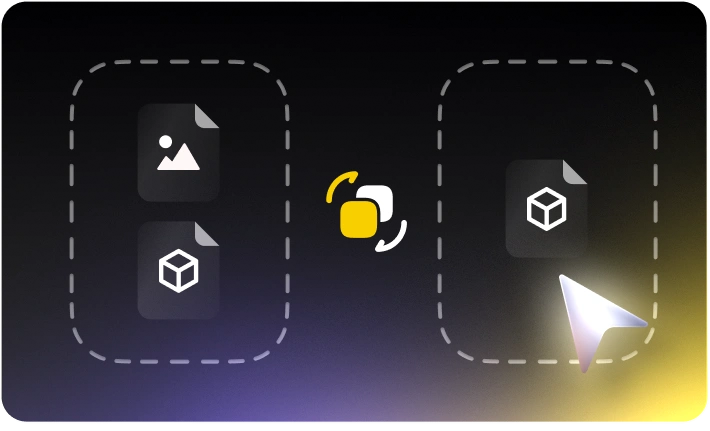
Here's a secret that experienced makers know: most STL files straight out of a converter need a little love. The conversion process can sometimes introduce errors like holes in the mesh, inverted normals, or non-manifold geometry—all of which will confuse your slicer and ruin your print. Before sending any file to the printer, make it a habit to run it through a mesh repair tool. Many slicers like PrusaSlicer have basic repair functions built-in, but dedicated free tools like Microsoft's 3D Builder or Autodesk Meshmixer offer more robust healing capabilities. This extra five-minute step is often the difference between a flawless print and a spaghetti monster on your build plate, and it's a hallmark of a true professional.
The final piece of wisdom for designers and makers is to consider what happens after the print finishes. Rarely is a freshly printed object the end product. Will you be sanding it? If so, ensure your design has smooth surfaces that are easy to finish. Will you be painting it? Consider adding small registration marks or recessed areas to guide your brush. Will it be a mold for casting? Your design needs draft angles to release properly. By extending your thinking beyond the STL file and imagining the object in its finished, post-processed state, you can make design decisions early on that save enormous effort later. A maker who thinks in terms of the complete lifecycle of an object is a maker who creates truly professional work.


